Samsung moisture detected won’t go away? Unplug the USB cable and turn off the phone until the port and cable are completely dry. Samsung blocks wired charging to reduce corrosion and damage. Once dry, restart and try a dry, known-good cable in a dry room. If the icon persists, Samsung recommends clearing the USB Settings cache. A visibly damaged port needs service, not a charging workaround.
Treat the Samsung moisture warning as real until the USB port, cable and environment are completely dry. Power the phone off, disconnect the cable and let it air-dry in a ventilated place. Do not use heat, compressed air or objects in the port. If the warning remains when dry, test another certified cable, clear the USBSettings cache using Samsung’s documented path, update software and seek service for corrosion or damage.
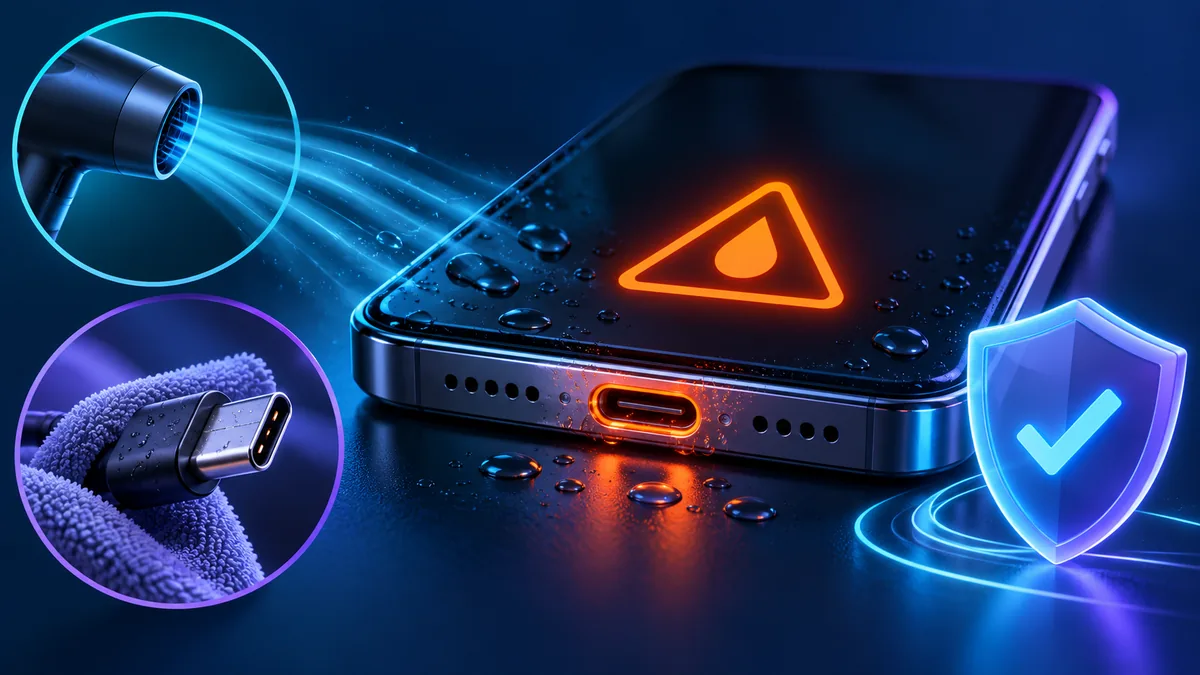
Table of Contents
Table of contents
What Samsung moisture detected won’t go away means
The water-drop icon means the Galaxy phone is protecting its USB charging path. Moisture may be in the port, on the cable, or in a humid environment. Samsung says the icon can appear without direct liquid contact and can remain after the port has dried. That does not prove the sensor is defective: inspect and dry both sides of the connection before changing software.
There are three useful outcomes to distinguish. If the warning clears after drying, moisture or humidity was likely involved. If it appears with one cable but not another, isolate the cable and charger. If it remains in a dry environment with several dry cables, clear the USB Settings cache and arrange inspection if the condition continues. Model and software menus vary, and not every Galaxy model supports wireless charging.
Symptoms and diagnostic checklist
Note when the warning first appeared, whether the phone was exposed to rain, steam or a spill, and whether it happens with one cable or every cable. Also note whether the phone charges wirelessly, if your model supports it. These observations determine whether to wait, replace an accessory, or seek service.
- A water-drop icon blocks USB charging.
- The warning remains after the phone appears dry.
- One cable triggers the warning.
- Wireless charging works while USB is blocked.
- The phone was exposed to humidity, debris or liquid.
Quick checks
- Disconnect USB immediately.
- Power the phone off.
- Inspect port and cable in good light.
- Allow natural ventilation.
- Try wireless charging only if the phone supports it and is otherwise dry.
- Back up when power becomes available.
Do not treat wireless charging as proof that the USB port is healthy. The two charging paths are different. A visible bend, green or white residue, heat, or a burning smell is reason to stop home troubleshooting and contact Samsung support.
Before you change anything
Disconnect the cable first. Keep the phone powered off while moisture may remain; Samsung recommends a dry cloth and a ventilated area. A fan can help move room-temperature air. Do not use a hair dryer, oven, compressed air, rice, or a tool inside the USB-C port. Those methods can add heat, debris or physical damage.
If the battery is low, do not force wired charging past the warning. A compatible wireless charger is an option only for a dry phone whose model supports it. Back up important data when power is available. If the phone was submerged, has liquid under its display, or shows corrosion, ask Samsung or an authorized service provider to inspect it.
Samsung moisture detected won’t go away: step-by-step fixes
Start with drying and accessory isolation. Do not connect a USB cable for a test until the phone and cable are completely dry. Once dry, make one controlled connection in a low-humidity room, then stop if the warning returns.
1. Disconnect power and let the phone dry
Samsung says the warning stops wired charging to protect the phone. Unplugging and turning it off prevents repeated charging attempts while the port may still contain moisture. Air drying can take longer in a humid room; do not rely on a fixed number of minutes.
- Unplug the cable.
- Power the phone off.
- Leave it in a dry ventilated location until completely dry.
Expected result: The real moisture condition clears safely.
Safety or rollback: Do not use hair dryers, ovens, rice or compressed air.
Retest: When the port and connector are fully dry, power on without a cable. If the icon is gone, try a dry cable once. If it returns, disconnect again and continue with inspection.
2. Inspect cable, plug and port
Look at both the USB-C plug and the phone port in good light. A damp plug can retrigger the icon even when the phone is dry. Visible corrosion or bent contacts need qualified inspection.
- Use bright indirect light.
- Check for lint, corrosion or bent contacts.
- Set aside any wet or damaged cable.
Expected result: A contaminated accessory is identified.
Safety or rollback: Do not insert metal or sharp tools.
Retest: If only one cable shows moisture or damage, retire that cable. Do not scrape the phone port or try to bridge contacts.
3. Test a dry certified cable and charger
Samsung recommends a different cable when moisture may be present in the original one. Use a known-good dry cable and compatible charger in a dry room. This separates an accessory problem from a phone-side warning.
- Confirm the port is dry.
- Use a known-good Samsung-approved or standards-compliant cable.
- Connect once and observe.
Expected result: The warning stays cleared with a healthy accessory.
Safety or rollback: Stop if heat, smell or warning returns.
Retest: If charging works with the replacement, replace the suspect cable. If every dry cable triggers the warning, leave USB disconnected and check the software path.
4. Restart after the port is dry
Samsung recommends restarting when the port is completely dry and the icon remains. Keep the USB cable disconnected during the restart so that the protective warning is not repeatedly retriggered.
- Keep USB disconnected.
- Restart the phone.
- Wait for startup, then connect a dry known-good cable.
Expected result: The stale warning clears.
Safety or rollback: Do not restart repeatedly while moisture remains.
Retest: After startup, check the icon before connecting a known-good cable. If it stays or returns immediately, stop repeated plug-in tests.
5. Clear USBSettings cache
Samsung documents a USB Settings cache clear for an icon that remains after drying. The menu may show “USBSettings” or “USB Settings,” depending on the model. Clear cache only, not app data or all device storage.
- Open Settings > Apps and show system apps.
- Open USBSettings > Storage.
- Clear cache, restart and retest when dry.
Expected result: USB service cache rebuilds.
Safety or rollback: Clear cache first; clearing data can reset USB preferences.
Retest: Restart after clearing cache, confirm the port is dry, then test once with the replacement cable. A returning warning is evidence for further inspection, not permission to bypass it.
6. Update Samsung software
An available stable system update is worth checking after the phone is dry and has adequate battery. The update is a software maintenance step; it cannot repair corroded contacts or trapped liquid.
- Connect through safe wireless charging or sufficient battery.
- Install the stable software update.
- Restart without a cable, then test.
Expected result: Current USB software handles the sensor state.
Safety or rollback: Do not update on critically low battery.
Retest: After updating, restart with USB disconnected and check the warning. If physical signs remain, move to service rather than repeating updates.
7. Use wireless charging only as a temporary option
Wireless charging uses a separate path and may keep a supported Galaxy model usable while USB charging is blocked. It does not repair the port or remove moisture. Follow the model manual for charger alignment.
- Confirm the exterior is dry.
- Use a compatible certified wireless charger.
- Back up important data while arranging USB repair.
Expected result: The phone remains usable without bypassing port protection.
Safety or rollback: Wireless charging can produce heat; stop if excessive.
Retest: If wireless charging works, back up data and arrange inspection when the wired warning remains. Stop if the phone or charger becomes unusually hot.
8. Arrange service for persistent warnings or corrosion
A water-drop icon that remains with a dry port, fresh cable, restart and cache clear can indicate a damaged connector or sensor. Samsung or an authorized service provider can inspect it safely.
- Back up the phone.
- Record exposure and warning behavior.
- Use Samsung or authorized service.
Expected result: Qualified service inspects the USB assembly.
Safety or rollback: Do not scrape corrosion or replace the port without training.
Retest: Record the model, software version, exposure history and the result of each cable test. Do not keep attempting wired power if the phone heats, smells unusual or will not start.
Troubleshooting decision table
| What you observe | Likely layer | Best next action |
|---|---|---|
| Recent liquid exposure | Real moisture | Power off and air-dry. |
| One cable triggers it | Cable contamination | Replace cable. |
| Warning clears after cache | USB service state | Monitor. |
| Visible corrosion | Hardware damage | Service. |
| Phone will not power on | Battery/board risk | Do not keep charging; service. |
Prioritize actual liquid exposure and visible damage over software steps. A cache clear is appropriate only after the port is dry; it does not dry a physical connector.
When these fixes will not help
A wet or corroded port needs drying or professional service; clearing a cache cannot remove liquid. A visibly damaged cable should be replaced. If the phone does not power on, becomes hot, or has signs of water inside, stop charging attempts and contact Samsung support. A software update likewise cannot repair a broken USB-C contact.
Prevention
Keep the charging cable and port away from sinks, steam and high-condensation spaces. Dry the outside of the phone and cable after rain before connecting USB. Inspect a frequently used cable for damaged plugs and replace it when contacts are worn. Do not assume an IP rating makes charging safe while the port is wet.
Keep a current backup and know whether your particular Galaxy supports wireless charging. Those measures make a temporary USB shutdown less disruptive without encouraging you to defeat the phone’s protective warning.
Frequently asked questions
Why does the water-drop icon appear when my phone was never wet?
Samsung says high humidity can trigger the warning. Moisture can also sit in a cable plug. Test in a dry room with a completely dry port and a different dry cable before assuming a software problem.
How long should I wait before charging?
Wait until the port and cable are completely dry. There is no dependable time for every spill, room temperature and humidity level. If you see corrosion or the warning returns, stop wired charging attempts and seek service.
Will clearing USBSettings cache erase my photos?
Samsung’s documented step is Clear cache under the USB Settings system app. That is different from clearing all phone storage or factory resetting. Select only Clear cache and back up important data before broader repair work.
Can I use wireless charging while the USB warning is on?
Samsung lists wireless charging as an option for a model that supports it. Make sure the exterior is dry and follow your model’s placement instructions. Wireless charging keeps the phone usable but does not fix a damaged USB port.
Should I use a hair dryer or compressed air?
No. Heat, force and debris can damage the connector. Disconnect power and use a ventilated, room-temperature location. Samsung describes drying with a dry cloth and air movement.
When should I book repair?
Book service for corrosion, bent contacts, unusual heat, a phone that will not power on, or a warning that persists after complete drying, a dry replacement cable, restart and Samsung’s cache step.
Official sources and related guides
Samsung’s support guide describes the charging block, safe drying, the USB Settings cache path, cable comparison and wireless charging. Menu labels may differ by Galaxy model and software version.
- Samsung: water-drop icon and USB Settings cache
- Samsung: moisture in a charging port and service options
Continue with these contextual TrueFixGuides resources:
If Samsung moisture detected won’t go away, leave USB unplugged until both port and cable are completely dry. Compare a dry replacement cable, restart, and use Samsung’s USB Settings cache step only after drying. Visible damage or a persistent warning needs authorized inspection.