Ollama “context deadline exceeded” means some operation did not finish before its deadline. The phrase alone does not identify the cause. Check whether it appears while pulling a model, loading one locally, discovering a GPU, generating a response, or waiting in a third-party client. Read the adjacent log lines, then test the matching path. A longer model-load timeout will not repair an unreachable registry or a short client request timeout.
For a pull, inspect the registry request, proxy, and disk space. For a local run, compare a smaller installed model and check RAM, VRAM, and GPU logs. If Ollama works directly but Open WebUI or an IDE fails after a fixed interval, inspect that client’s timeout. The eight checks below keep these paths separate.
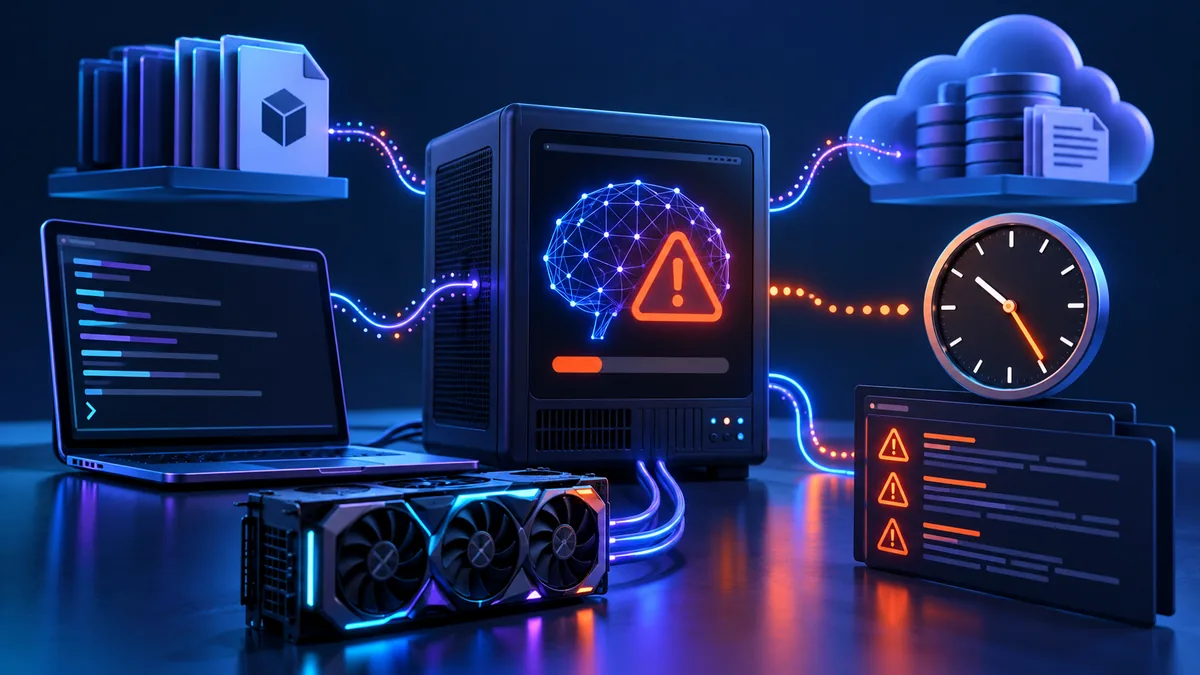
Table of Contents
Table of contents
What Ollama context deadline exceeded means
“Context deadline exceeded” is a Go timeout wrapper, not one specific Ollama failure. Official Ollama repository reports have used the phrase for registry requests and GPU discovery; those issue reports are examples, not proof that every installation has the same bug. The operation and log context immediately before the error are more useful than the phrase alone.
Ollama can run as a desktop app, a Linux systemd service, a manually started process, or a container. Log locations and environment-variable changes differ for each. Identify how your server runs before changing its configuration; a shell variable may not affect a separately running service.
Symptoms and diagnostic checklist
Record the exact command or app action, Ollama version, model name, elapsed time, and the adjacent server-log message. Note whether an installed small model answers through the CLI. A timeout during ollama pull is not the same as a timeout after the model is already loaded.
- ollama pull stops with context deadline exceeded.
- A model loads through the CLI but times out in another client.
- Logs show a registry or Hugging Face request timeout.
- GPU discovery or model load reaches a deadline.
- The local API responds slowly or not at all.
Quick checks
- Record the exact command and Ollama version.
- Run ollama –version.
- Test the same model directly with the CLI.
- Check free disk, RAM and VRAM.
- Inspect recent Ollama logs.
- Note proxy, VPN, Docker or third-party client involvement.
Check whether the local server responds at http://127.0.0.1:11434/api/version. If it does not, investigate whether Ollama is running before changing a model or client timeout. If it responds but pulls fail, follow the network path. If CLI inference works and only one integration fails, start with that integration.
Before you change anything
Save your current Ollama environment-variable values and any service or container configuration before changing them. Do not delete the model blob directory blindly: layers can be shared by several models. Keep a record of the last working Ollama version if a failure began after an update.
Ollama logs can include local paths, usernames, model names, prompts, and network endpoints. Redact private values before posting an issue. Use Ollama’s own documentation and official driver sources; do not expose the local API port publicly as a shortcut to testing.
Ollama context deadline exceeded: step-by-step fixes
Use the log and operation to select only the relevant checks. Model-pull steps do not fix a GPU discovery failure, and GPU settings do not fix a third-party client deadline. Change one setting at a time and restore it if the error persists.
1. Identify the timed-out operation in logs
Start with the server log. Ollama documents %LOCALAPPDATA%\Ollama\server.log on Windows, ~/.ollama/logs/server.log on macOS, journalctl -u ollama for a Linux systemd service, and container stdout for Docker. Match the timestamp of the visible error to the request just before it.
- Reproduce once with debug logging appropriate to the platform.
- Find the first context deadline line and the request before it.
- Classify it as pull, load, GPU, inference or client timeout.
Expected result: The failing layer is identified.
Safety or rollback: Redact usernames, paths, tokens and prompts before sharing logs.
2. Test the local API and CLI directly
Test the local API and an already installed small model without the third-party app. Ollama documents http://localhost:11434/api as the local base URL. If ollama run MODEL succeeds but an IDE times out, the IDE’s request settings become the next suspect. If the API is unreachable, first start or repair the Ollama server.
- Run ollama list.
- Run a small installed model from the CLI.
- Query the local version endpoint at 127.0.0.1:11434.
Expected result: Local service health is established.
Safety or rollback: Do not expose port 11434 publicly for testing.
3. Check registry, DNS, proxy and VPN routing
A pull needs a working outbound route to the registry or model host. Note whether the log names a manifest, blob, DNS lookup, TLS certificate, or proxy. Ollama’s FAQ recommends HTTPS_PROXY for outbound model pulls and warns that setting HTTP_PROXY can interrupt local client connections. On a managed network, ask its administrator before changing proxy settings.
- Test access to the exact host shown in the log.
- Review the active
HTTPS_PROXYandNO_PROXYvalues; remove a mistakenHTTP_PROXYonly after recording it and confirming policy. - Disable a personal VPN for one controlled test.
Expected result: The remote route works or a proxy-specific failure is isolated.
Safety or rollback: Do not bypass organization security policy.
4. Resume the pull with enough disk space
Check free space in Ollama’s configured models location before retrying a pull. A model can need space for downloaded layers and temporary files. Retrying the same official ollama pull MODEL command is safer than deleting shared blob folders. Watch the progress and log; if it repeatedly fails at the same network request, return to the registry route.
- Check free space in the Ollama model location.
- Retry the same official pull once.
- Watch whether existing layers resume instead of restarting.
Expected result: The model finishes downloading and verifies.
Safety or rollback: Do not delete blob folders blindly; shared layers may be in use.
5. Reduce model and context resource demand
If the error occurs after a model has already downloaded, compare a smaller installed model and a shorter prompt. Ollama documents OLLAMA_CONTEXT_LENGTH and the num_ctx API option; a larger context can increase memory demand. Use ollama ps to see whether a model is loaded on CPU, GPU, or both. Do not reduce context if the task genuinely requires information that would be cut off.
- Test a smaller quantization or model.
- Return context length to a documented reasonable value.
- Close competing GPU and memory workloads.
Expected result: A resource-appropriate model loads within the deadline.
Safety or rollback: Changing context length affects capacity and answer context.
6. Review GPU discovery and driver compatibility
Ollama’s troubleshooting guide says GPU discovery failures can occur with drivers, container runtime access, and incompatible GPU libraries. A log line naming the discovery watchdog is evidence to inspect GPU setup, not the model registry. Check the official GPU support guide and driver for your exact hardware before trying documented CPU-only isolation.
- Update Ollama through the official installer.
- Install a stable supported GPU driver.
- Test CPU or one supported GPU only if documented.
Expected result: Ollama completes hardware discovery.
Safety or rollback: Do not use random environment overrides without matching hardware evidence.
7. Adjust documented load timeout only when justified
Ollama’s current configuration source defines OLLAMA_LOAD_TIMEOUT for a model load that stalls, with a five-minute default. Change it only if logs show continued load progress near that deadline; it will not fix a pull timeout, network failure, or crashed runner. Record the old value, set a modest longer duration in the server’s actual environment, restart that server, and compare once.
- Confirm logs show continuous loading progress.
- Set a measured
OLLAMA_LOAD_TIMEOUTduration in the app, systemd service, or container environment that actually starts Ollama. - Restart Ollama and retest once.
Expected result: The same healthy load receives enough time.
Safety or rollback: Longer timeouts hide real hangs; restore the default if no progress occurs.
8. Correct the third-party client timeout
When the CLI and local API finish the same request but Open WebUI, an IDE, or a custom script times out after a repeatable interval, inspect that client’s HTTP request timeout and streaming mode. Changing Ollama’s model-load timeout may have no effect on a client that closes the connection first. Test a smaller model or shorter prompt as a comparison before raising the client limit.
- Measure the direct CLI/API response time.
- Find the client request timeout setting.
- Increase it modestly or use a smaller model, then retest.
Expected result: The integration waits long enough for a proven healthy response.
Safety or rollback: Do not confuse client timeout with Ollama server load timeout.
Troubleshooting decision table
| What you observe | Likely layer | Best next action |
|---|---|---|
| Log shows registry URL | Network/pull | Fix route, proxy or disk. |
| CLI works, client fails at fixed time | Client timeout | Change client setting. |
| GPU discovery times out | Driver/hardware | Update and simplify GPU path. |
| Smaller model works | Resource pressure | Use suitable model/context. |
| Local API unavailable | Ollama service | Repair service startup first. |
Use the Ollama pull timeout table to avoid repeating steps that cannot affect the observed layer. If two rows fit, begin with the one that preserves the most data and settings.
When these fixes will not help
- An unreachable registry or proxy requires a network fix, not a longer model-load deadline.
- A GPU driver or container passthrough failure needs its own hardware or runtime diagnosis.
- A client-side HTTP timeout needs a client change even when Ollama is healthy.
- A server crash or out-of-memory termination will not be cured merely by waiting longer.
For an Ollama issue report, include the version, operating system, server mode, model, redacted log excerpt around the first error, and whether a smaller local model works. For a third-party client issue, include the client name and its timeout interval. A repository issue is an observation about particular installations, not a universal diagnosis.
Prevention
- Keep a record of Ollama version, model location, proxy, and timeout settings.
- Leave enough disk space for model pulls and keep drivers compatible with your GPU.
- Test an installed small model directly after major updates before blaming an integration.
- Keep local API access bound to a trusted interface unless you intentionally secure remote access.
- Review logs before changing server-wide limits.
These habits cannot prevent every upstream or hardware timeout, but they give you a known-good local comparison and the configuration needed to recover safely.
Frequently asked questions
Does “context deadline exceeded” always mean a network problem?
No. Ollama issue reports show it during registry requests and GPU discovery, and a third-party client may apply its own deadline. Use the adjacent log line and the operation that failed.
Will increasing OLLAMA_LOAD_TIMEOUT fix a model pull?
Usually not. That variable governs stalled model loading in Ollama’s server. A pull that cannot reach a registry needs a network, proxy, certificate, or storage diagnosis.
Why does Ollama work in the CLI but fail in my IDE?
The IDE or integration may use a different base URL, request timeout, model name, or proxy. Compare its settings and a direct local API request before changing the server.
Where do I find the Ollama server log?
Ollama documents platform-specific locations: the local application log on Windows or macOS, systemd journal on Linux, and container output for Docker. Redact prompts and private paths before sharing it.
Official sources and related guides
The technical claims for Ollama pull timeout were checked against the primary vendor resources below. Interfaces, availability and policies can change, so use the current vendor page if a label differs.
- Ollama 2026 timeout issue
- Ollama: logs and GPU troubleshooting
- Ollama: proxy, context length and server configuration
- Ollama: local API base URL
- Ollama source: model-load timeout setting
- Ollama issue example: GPU discovery deadline
Continue with these contextual TrueFixGuides resources:
In summary, resolve an Ollama context deadline exceeded error by identifying which operation timed out. Use logs and a direct CLI/API comparison, then inspect the registry path for pulls, resources and GPU discovery for model loads, or the client timeout when only one integration fails. Change OLLAMA_LOAD_TIMEOUT only when a slow model load is the proven bottleneck.