Android apps not working after an update? Restart once, install pending app and Google Play system updates, and check whether the problem affects one app or many. For a single app, force stop and clear its cache before considering a reinstall. For many unrelated apps, check storage and system components first. Back up unsynced files before clearing app storage because that step can erase local data.
After an Android update, update every affected app plus Google Play system components, restart the phone, check free storage, and clear only the failing app’s cache. If many third-party apps fail, use safe mode to identify conflicts. Clear app storage or reinstall only after confirming sync and login details because both can remove local data.
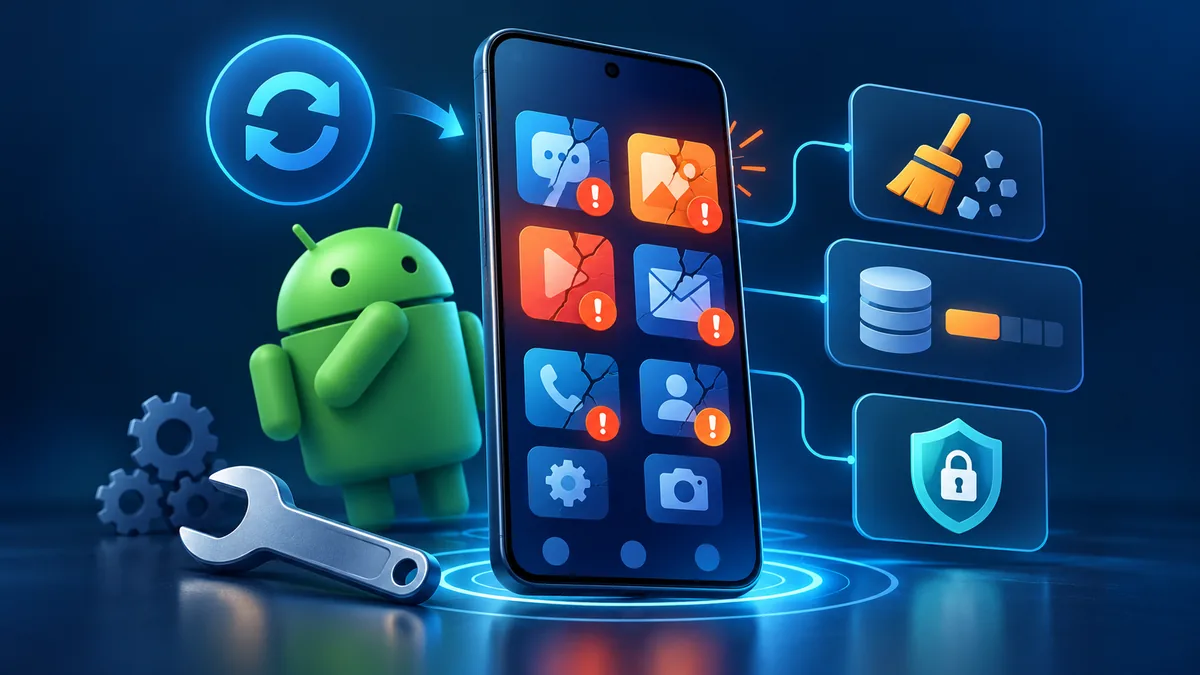
Table of Contents
Table of contents
What Android apps not working after update means
A system update changes Android frameworks, permissions and background limits. Apps may need compatible builds or fresh cached files. One broken app usually points to that app; many unrelated apps suggest storage, WebView/Play components, a work profile, security software or system state.
Menu labels differ by phone maker and Android release. If only work-profile apps fail, contact your organization’s administrator before clearing data or removing the profile. If a single banking app reports an unsupported device, check the developer’s official compatibility notice; ordinary cache clearing may not change its security requirements.
Symptoms and quick diagnosis
Write down which apps fail, the exact message, your Android version, and whether a browser or built-in app still works. Try the same failing action once on Wi-Fi and, if available, mobile data. A web-based app that loads only on one connection points to a network problem; an app that closes before showing content suggests an app or system problem.
- Apps crash immediately after opening.
- A blank screen appears after the Android update.
- Several apps show keeps stopping.
- Only work-profile or banking apps fail.
- Built-in apps work but downloaded apps do not.
Distinguish a crash from a sign-in failure. If the app opens but says the service is unavailable, check the provider’s official status page before changing phone settings. If it crashes offline and online, record the version and continue with the local checks. Stop once the same action works again.
Quick diagnostic checklist
- Restart the phone once.
- Update apps in the official store.
- Check available storage.
- Note whether one or many apps fail.
- Confirm automatic date and time.
- Back up unsynced app data before clearing storage.
Before changing anything
Confirm that photos, notes, chat histories, game saves, and offline documents are actually synced or exported before deleting app data. A cloud backup may cover the phone but omit data inside a particular app. Check the app’s own export or backup screen and verify you can sign in again, especially if it holds a two-factor authenticator.
Capture the error message and app version for a support request, but remove personal information from screenshots. Avoid “repair” APKs from search results. They may introduce malware and make it harder to tell whether the official app is fixed.
When an update is still installing or optimizing apps, let it finish with power and a stable connection. Do not repeatedly force-restart during the installation screen. If the phone is managed, ask its administrator before disabling security software or changing work-profile settings.
Android apps not working after update: step-by-step fixes
The order below moves from reversible checks to changes that can remove local app data. Test the same symptom after each relevant step and record what changed. An app that works after a cache clear needs no reinstall.
1. Restart and finish pending optimization
After a system update, the phone can continue setting up apps and system components. Wait until update notifications finish, then restart once. If only a specific app still fails, that is useful evidence: the rest of Android is working and you can focus on that app rather than resetting the phone.
- Connect to power and Wi-Fi.
- Allow post-update work to settle.
- Restart normally and test one app.
Expected result: Temporary post-update state clears.
Safety or rollback note: Do not repeatedly interrupt update optimization.
2. Update the affected apps and system components
Developers release compatibility fixes after Android changes. In Play Store, update the affected app first, then other pending apps. Check the phone’s Software update and Google Play system update screens. Chrome and Android System WebView may affect pages embedded inside apps, though their availability varies by device. Restart when the update asks for it and retest the original symptom.
- Open Play Store > Manage apps & device.
- Install available updates from official publishers.
- Check Settings for Google Play system update and restart if requested.
Expected result: Compatible app and web-rendering components load.
Safety or rollback note: Avoid sideloaded replacement APKs during diagnosis.
3. Check storage and automatic time
Low available storage can prevent an app from writing its database or temporary files. Check how much is free before deleting anything, then remove only reviewed downloads or media that is already backed up. An incorrect clock can break sign-in and secure connections; compare the displayed time and time zone with your location.
- Open Settings > Storage and review large items.
- Free space by removing reviewed downloads or backed-up media.
- Enable automatic date, time and time zone.
Expected result: Apps can create files and authenticate.
Safety or rollback note: Do not use aggressive cleaner apps or delete unknown folders.
4. Force stop and clear cache for one app
Clearing one app’s cache removes temporary files and is narrower than clearing its storage. Force stop the affected app, clear its cache, and reopen it. If it works, keep your saved data and stop. If it fails with the same message, record that result before moving to permissions or data removal.
- Open Settings > Apps > affected app.
- Choose Force stop, then Storage & cache > Clear cache.
- Open the app and test.
Expected result: Damaged temporary files are rebuilt.
Safety or rollback note: Do not choose Clear storage yet.
5. Review permissions and battery restrictions
An app may open but fail when it reaches a feature that needs camera, location, photos, microphone, or notifications. Review only the permission tied to the failed feature. If the app crashes immediately, granting broad access is unlikely to help. Battery restrictions matter mainly for delayed notifications and background sync, not every foreground crash.
- Open the app’s Permissions page.
- Allow only permissions required for the feature.
- Review Battery usage if notifications or background sync fail.
Expected result: The app has necessary, limited access.
Safety or rollback note: Do not grant contacts, files, microphone or accessibility access without a real need.
6. Test safe mode for third-party conflicts
Safe mode temporarily disables downloaded apps. That means you generally cannot test a downloaded app itself there. Instead, test a built-in function or system behavior that failed after the update. If it works in safe mode, restart normally and remove recent launchers, overlays, VPNs, cleaners, or security apps one at a time. If the symptom remains in safe mode, a third-party conflict is less likely.
- Use the maker’s instructions to enter safe mode.
- Test the same built-in function or affected system behavior.
- Restart normally and remove recently installed suspect apps one at a time.
Expected result: A third-party conflict is isolated.
Safety or rollback note: Safe-mode entry varies; do not use factory-reset instructions by mistake.
7. Clear app storage or reinstall only with a backup
Clearing storage or reinstalling an app can delete offline files, drafts, downloads, and sign-in state. Before this step, open the service on another device or its website to confirm that your important information is synced. Export local data if the app provides that option. If an authenticator or banking app is affected, confirm account recovery before removing it.
- Verify the app account and sync status.
- Export local data if the app supports it.
- Clear storage or uninstall, restart, and reinstall from the official store.
Expected result: The app creates a clean compatible profile.
Safety or rollback note: Unsynced local data may be permanently lost.
8. Install a stable system patch or contact the app maker
If one app still fails after a safe cache clear and current official updates, its developer may need to fix compatibility with the new Android version. Report the phone model, Android version, app version, exact error, and whether the failure happens on Wi-Fi and mobile data. For several unrelated apps, check the device maker’s support notices and stable system patches instead.
- Check the phone maker’s official update page.
- Install a newer stable patch after backup.
- Send the app developer the model, Android version and crash time.
Expected result: The responsible vendor receives a reproducible compatibility case.
Safety or rollback note: Do not downgrade firmware with unofficial tools.
Troubleshooting decision table
| What you observe | Most likely layer | Best next action |
|---|---|---|
| One app fails | App cache/version | Update, clear cache, then contact developer. |
| Many apps fail | System/storage/component | Check storage and Play system components. |
| Safe mode fixes system behavior | Third-party conflict | Remove recent overlay/cleaner/VPN apps. |
| Work apps only fail | Organization policy | Contact the administrator. |
| Crashes persist after clean reinstall | Compatibility bug | Report to developer and device maker. |
Use the Android apps keep crashing after update decision table to avoid repeating steps that cannot affect your symptom. If two rows appear to match, start with the one that requires the least invasive change.
When these fixes will not help
- A service outage must be resolved by the provider; a local reinstall will not restore its servers.
- Work-profile policy or device compliance rules require an administrator.
- An app no longer compatible with the phone’s Android version requires a developer-supported update or device change.
- A phone that freezes or restarts outside the app needs broader device diagnostics.
Contact the app developer when one app fails but other apps work. Contact the phone maker or Google Play support when updates cannot install or Google apps also fail. Share the symptom and versions, plus the specific safe steps already tried, without sending passwords, one-time codes, or unredacted private logs.
How to prevent the problem
- Keep the affected apps and Google Play system components current through official updates.
- Verify that essential app data is synced before a major Android update.
- Keep recovery methods for banking and authentication apps outside the phone.
- Leave enough free storage for updates and normal app files.
- Record the phone and app versions if a problem begins immediately after an update.
These habits cannot prevent every compatibility bug, but they make recovery safer. A verified backup is especially useful because clearing app storage may permanently remove unsynced work.
Frequently asked questions about Android apps not working after update
Will clearing app cache delete my account?
Usually no. Clearing storage is the action that removes app data and sign-in state.
Why do several apps show blank pages?
Outdated WebView or Chrome components, low storage or a network filter can affect multiple apps.
Should I factory reset Android?
Not early. Exhaust updates, storage, cache and safe-mode tests, then back up fully before considering reset.
Can I downgrade Android?
Official downgrade support is device-specific and often erases data; avoid unofficial flashing.
Official sources and related guides
These official Google resources describe app updates, cache and data clearing, safe mode, and when to contact a developer. Steps and menu labels vary by device.
- Google Android Help: fix an installed app that is not working
- Google Pixel Help: test for app conflicts with safe mode
- Google Pixel Help: check Android and Google Play system updates
Continue with these related TrueFixGuides resources:
- Android troubleshooting hub
- Apps keep closing automatically
- Pixel Wi-Fi and Bluetooth will not turn on
In summary, identify whether one app or many fail, install official updates, and clear only the affected app’s cache before considering data removal. If a current app still crashes after these checks, send the developer a reproducible report. Keep unsynced data backed up before clearing storage or reinstalling.