iPhone stuck on Apple logo needs a diagnosis before a reset. The safest route is to identify whether the failure comes from the device, application, account, network, or provider service, then change one layer at a time. This guide gives you that sequence and explains what each result means.
If an iPhone remains on the Apple logo with no progress for at least an hour, force restart it using the correct model sequence. If it returns to the logo, connect it to a trusted Mac or PC, enter recovery mode and choose Update first. Restore erases the iPhone, so use it only after Update fails and you understand the backup situation.
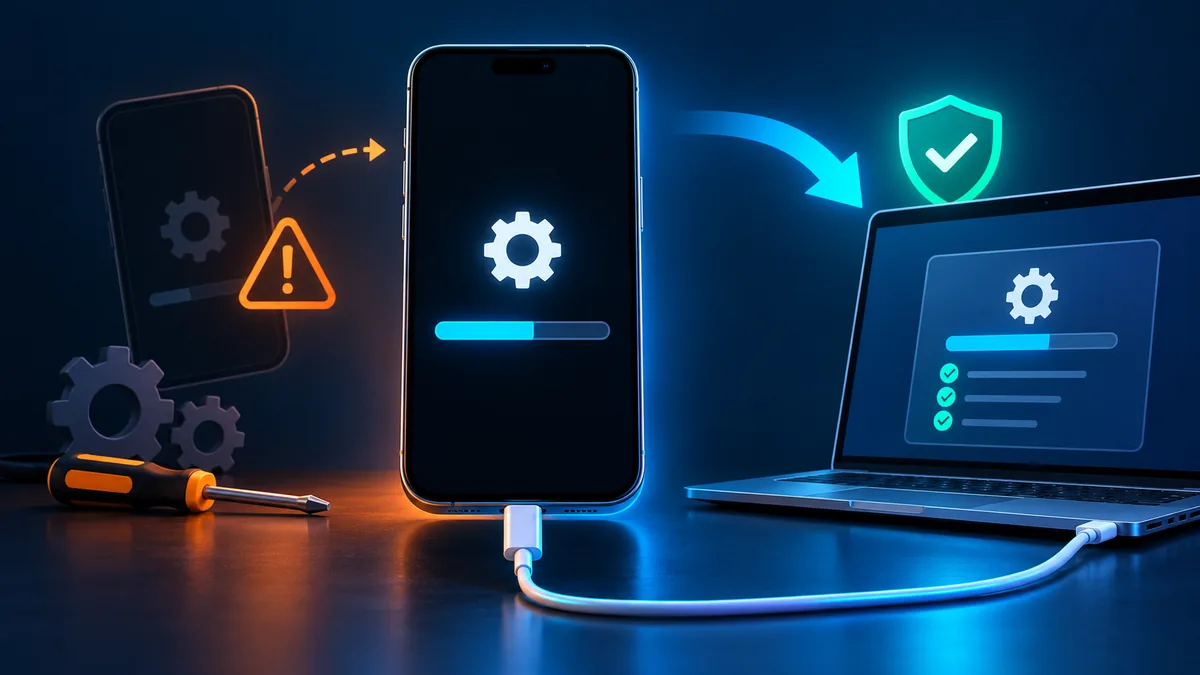
Table of Contents
Table of contents
What iPhone stuck on Apple logo means
The Apple logo appears during normal boot and update installation. It becomes a problem when the progress bar does not move for an extended period, the phone restarts repeatedly, or it never reaches the passcode screen. Causes include interrupted updates, storage problems and hardware faults.
undefined Scope label: iPhone Apple logo loop.
Symptoms and quick diagnosis
Confirm that you are solving the same problem before applying a fix. iPhone stuck on Apple logo can look similar to several unrelated failures, and the correct next step depends on what still works.
- The Apple logo remains for more than an hour.
- A progress bar never moves.
- The iPhone restarts back to the logo.
- A computer detects recovery mode.
- The problem followed an update, restore, low storage, drop or liquid exposure.
Begin with the least invasive comparison: note what still works, whether the problem follows a location or accessory, and whether it started after an update, drop, repair or settings change. Preserve a backup before recovery or service. Diagnostic label: iPhone Apple logo loop.
Quick diagnostic checklist
- Keep the iPhone connected to reliable power.
- Note whether a progress bar moves.
- Do not repeat force restarts during active update progress.
- Use a trusted current Mac or PC and cable.
- Know whether an iCloud or computer backup exists.
- Stop if the phone is damaged, wet or unusually hot.
Before changing anything
Back up the device if it remains usable. Keep the Apple Account password, device passcode and a trusted phone number available. Use Apple-certified or manufacturer-rated power and connection accessories, and record any recent repair or liquid exposure. Baseline: iPhone Apple logo loop.
For iPhone Apple logo loop, save work and record the exact message, time, version, and last successful action. Keep screenshots private. Do not share passwords, one-time codes, recovery keys, API keys, financial details, device serial numbers, or unredacted logs.
Use official downloads and support channels when investigating iPhone Apple logo loop. If a step changes stored data, account access, drivers, firmware, network profiles, or recovery state, read its safety note first and keep a way back.
iPhone stuck on Apple logo: step-by-step fixes
Work from the first iPhone Apple logo loop check downward. The order deliberately starts with reversible checks and leaves resets, reinstallations, recovery operations, and hardware service until the evidence justifies them.
1. Allow a legitimate update to finish
Apple notes that progress bars can move slowly. Interrupting active installation creates more risk than waiting. Use the result as evidence before moving to the next step; changing several layers together hides the cause and can create a second problem.
- Connect to power.
- Observe whether the bar moves over at least one hour.
- If it moves, continue waiting without disconnecting.
Expected result: A slow update finishes normally.
Safety or rollback note: Do not force restart during visibly progressing installation.
2. Force restart with the correct model sequence
A force restart can clear a stalled boot without erasing data, but button sequences differ by model. Use the result as evidence before moving to the next step; changing several layers together hides the cause and can create a second problem.
- For iPhone 8 or later: press Volume Up, press Volume Down, then hold Side until restart.
- For iPhone 7 series: hold Side and Volume Down.
- For iPhone 6s or earlier: hold Home and Side/Top.
Expected result: The iPhone reaches the passcode screen.
Safety or rollback note: Follow Apple’s exact model instructions; do not repeat continuously.
3. Prepare a current trusted computer
Recovery requires current Finder, Apple Devices or iTunes software and a reliable data cable. Use the result as evidence before moving to the next step; changing several layers together hides the cause and can create a second problem.
- Update macOS or Apple Devices/iTunes.
- Connect directly with a known-good cable.
- Close conflicting phone-management utilities.
Expected result: The computer detects the iPhone consistently.
Safety or rollback note: Use your own trusted computer when possible.
4. Enter recovery mode
Recovery mode lets the computer reinstall iOS when normal startup fails. The button sequence continues beyond the Apple logo until the recovery screen appears. Use the result as evidence before moving to the next step; changing several layers together hides the cause and can create a second problem.
- Connect the iPhone to the computer.
- Use Apple’s model-specific button sequence and keep holding to the recovery screen.
- Wait for Finder or Apple Devices to offer Update or Restore.
Expected result: The computer offers controlled recovery choices.
Safety or rollback note: If the download exceeds about 15 minutes and recovery exits, let it finish and re-enter recovery.
5. Choose Update before Restore
Update attempts to reinstall iOS while preserving data. It is the least destructive recovery choice. Use the result as evidence before moving to the next step; changing several layers together hides the cause and can create a second problem.
- Select Update when prompted.
- Keep the cable and power stable during download and installation.
- Allow the iPhone to restart and test.
Expected result: iOS is reinstalled without intentional data erasure.
Safety or rollback note: Update can still fail; no repair process can guarantee unsynced data.
6. Verify backup before choosing Restore
Restore erases the phone and installs iOS. Confirm iCloud or computer backup details where possible. Use the result as evidence before moving to the next step; changing several layers together hides the cause and can create a second problem.
- Check iCloud backup from another signed-in Apple device or account page.
- Check Finder/iTunes backup records on the computer.
- Write down eSIM/carrier and authentication recovery needs.
Expected result: The consequences of erasure are understood.
Safety or rollback note: Do not assume every photo, message or authenticator is backed up.
7. Restore only when Update fails
Use Restore after the nondestructive Update path fails and a backup or data-loss decision is clear. Use the result as evidence before moving to the next step; changing several layers together hides the cause and can create a second problem.
- Re-enter recovery mode.
- Choose Restore and keep power and connection stable.
- Activate and restore from the chosen backup after installation.
Expected result: A clean iOS installation boots successfully.
Safety or rollback note: Restore erases local data.
8. Escalate repeated recovery errors or damage
Repeated computer error codes, disconnects, overheating or prior damage can indicate cable, port, storage or board failure. Use the result as evidence before moving to the next step; changing several layers together hides the cause and can create a second problem.
- Record exact Finder, Apple Devices or iTunes errors.
- Test one known-good cable and computer port.
- Arrange Apple service and explain the data priority.
Expected result: Hardware diagnosis proceeds without blind repeated restores.
Safety or rollback note: Stop using a swollen, wet or dangerously hot device.
Troubleshooting decision table
| What you observe | Most likely layer | Best next action |
|---|---|---|
| Progress bar moves | Normal update | Wait with power. |
| Force restart boots | Temporary stall | Back up and update later. |
| Recovery Update works | Damaged iOS install | Verify data and storage. |
| Update fails, backup exists | Software recovery | Consider Restore. |
| Repeated recovery errors | Connection/hardware | Change cable once, then service. |
Use the iPhone Apple logo loop decision table to avoid repeating steps that cannot affect your symptom. If two rows appear to match, start with the one that requires the least invasive change.
When these fixes will not help
- The device has impact, liquid or connector damage.
- Activation, carrier or account restrictions require the responsible provider.
- A managed-device policy prevents the change.
- A failed component needs qualified service.
Arrange Apple or authorized service when the same fault survives current software, safe resets and accessory comparisons, or when diagnostics indicate hardware. Back up first and document intermittent symptoms because a bench test may not reproduce them immediately. Case label: iPhone Apple logo loop.
How to prevent the problem
- Keep iOS or macOS and apps on stable supported releases.
- Maintain current encrypted or cloud backups.
- Use certified cables, chargers and accessories.
- Protect the device from heat, moisture and impact.
- Review recovery contacts and carrier details before travel.
Prevention for iPhone Apple logo loop cannot eliminate provider outages or component failures, but it can preserve recovery options and make the next diagnosis much faster.
Frequently asked questions about iPhone stuck on Apple logo
How long should I wait on the Apple logo?
If an update progress bar moves, keep waiting. Apple recommends action when it has not moved for at least an hour.
Does force restart erase an iPhone?
No, but it should not interrupt an update that is visibly progressing.
Does recovery-mode Update erase data?
It is designed to reinstall iOS without erasing data, but failures can still lead to restore, so backups matter.
Can I retrieve data before Restore?
If the phone cannot boot or trust a computer, normal backup may be impossible; discuss data priority with qualified service before erasing.
Official sources and related guides
The iPhone Apple logo loop guidance in this article was checked against the following primary vendor resources. Interfaces and policies can change, so use the current vendor page when a label differs from your screen.
Continue with these related TrueFixGuides resources:
- iPhone troubleshooting hub
- iPhone update not downloading over cellular
- iOS touch screen not responding
In summary, iPhone stuck on Apple logo should be handled by identifying the failing layer, applying the least destructive relevant fix, and confirming the result before moving on. Stop when the normal test succeeds; more changes do not make a working system more repaired.


